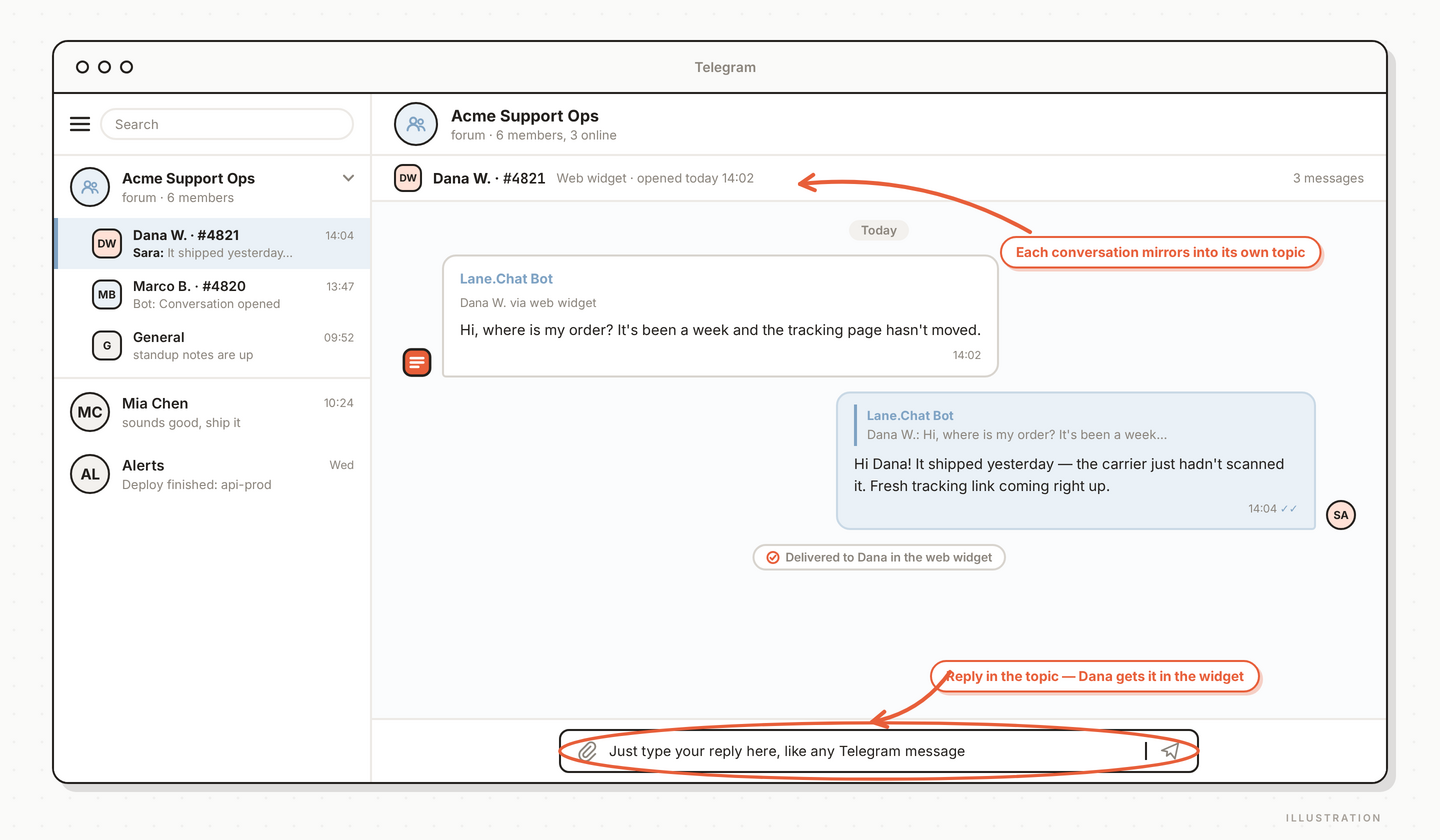
Every support tool ships a dashboard, and every small team has the same relationship with it: someone checks it after lunch. The app your team actually watches all day is Telegram. Lane.Chat's group mirror leans into that — every customer conversation shows up in a Telegram supergroup as its own topic, and replies typed in the group go straight back to the customer in the widget.
Ten minutes of setup, three fields, no webhook wrangling. Here's the walk-through.
What you're building
The shape of it: you make a private supergroup for your support crew and connect it to your app. From then on:
- Every new support chat opens a new topic in the group: one thread per customer, no interleaved chaos.
- The visitor's messages mirror in as posts from the bot.
- Anyone in the group replies inside the topic, and the customer receives it in the web widget, sent from your support desk rather than a teammate's personal account.
The dashboard keeps working exactly as before; the mirrored conversation is still a normal Web-channel thread there. The group is an extra pair of doors, not a replacement.
Step 1: Make the group, Telegram-side
Two things to do in Telegram, and the order matters:
- Create a supergroup and turn on topics. Topics are what keep each customer in their own thread; without them there's nowhere for per-conversation threads to live.
- Add the bot as a group admin. By default that's Lane.Chat's own bot; if you'd rather run a bot of your own, more on that in a minute.
While you're there, collect two numbers. The group ID: supergroup IDs start with -100, like -1001234567890. And the Telegram user IDs of your admins: the settings page's own hint has the easiest method: "DM @userinfobot on Telegram to get your UID."
Step 2: Fill in three fields
In the dashboard, go to Applications → your app → Settings → the Telegram tab. The section titled "Telegram integration — Forward support messages to a Telegram group" wants:
- Group ID — the
-100…number. - Admin IDs — comma-separated user IDs. These are the people whose group replies go out to customers.
- Bot Token (optional) — leave it blank to use the default bot. Filling it in points this app at a dedicated bot of your own from @BotFather, which some teams want so the bot carries their name and avatar. Optional means optional; blank works.
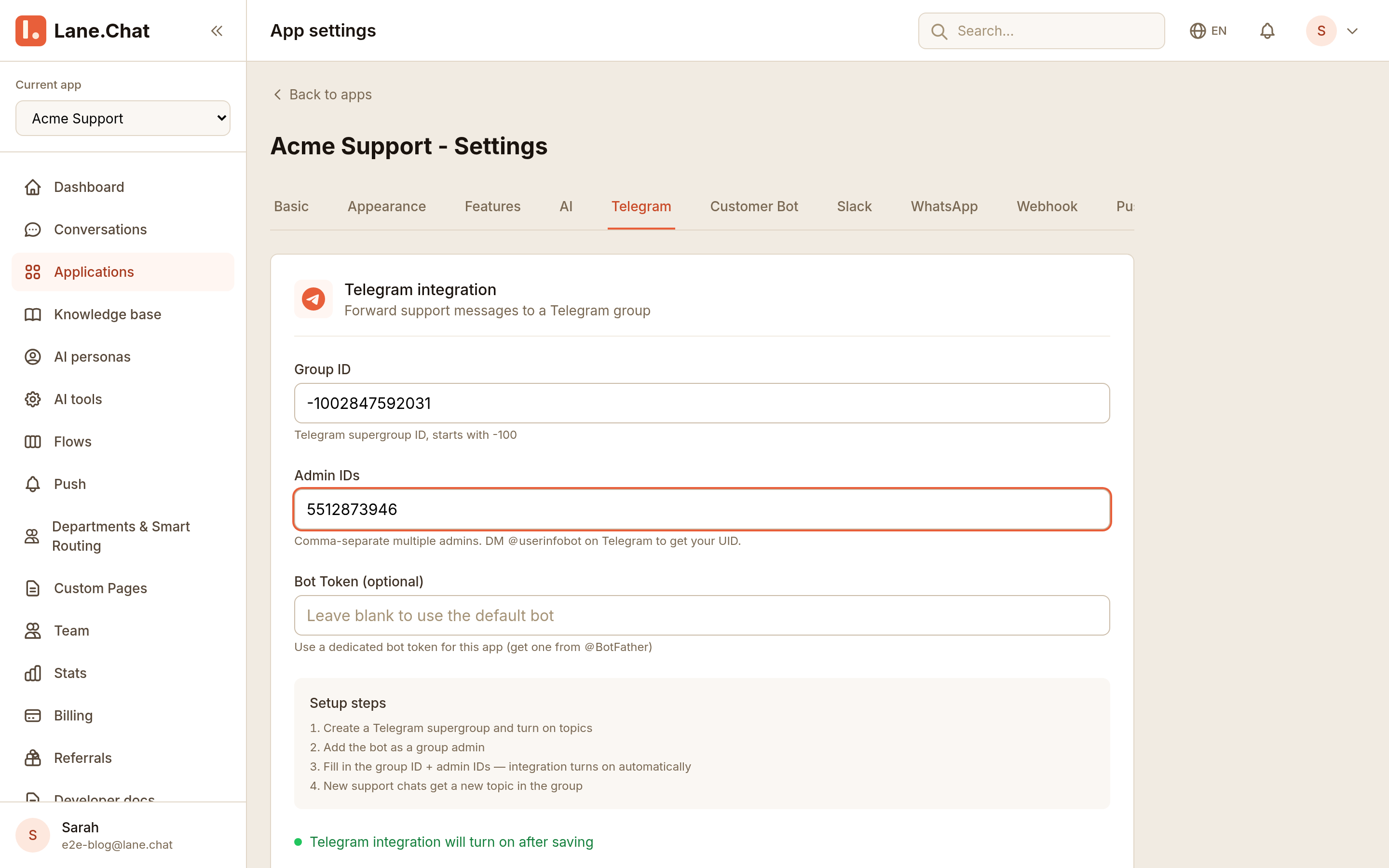
Notice what's missing: an on/off switch. The status line at the bottom of the tab says it plainly: "Telegram integration will turn on after saving." Fill in the group ID and admin IDs, hit save, and the integration is live; the Telegram webhook gets configured server-side without you touching it.
Step 3: Watch a conversation flow both ways
Have someone open your site's widget and send a message — "Hi, where is my order?" does fine. Three places light up.
In the dashboard, the conversation appears under Conversations as a normal web thread. Mirroring changes nothing about how the workbench looks; agents who prefer it can keep living there.
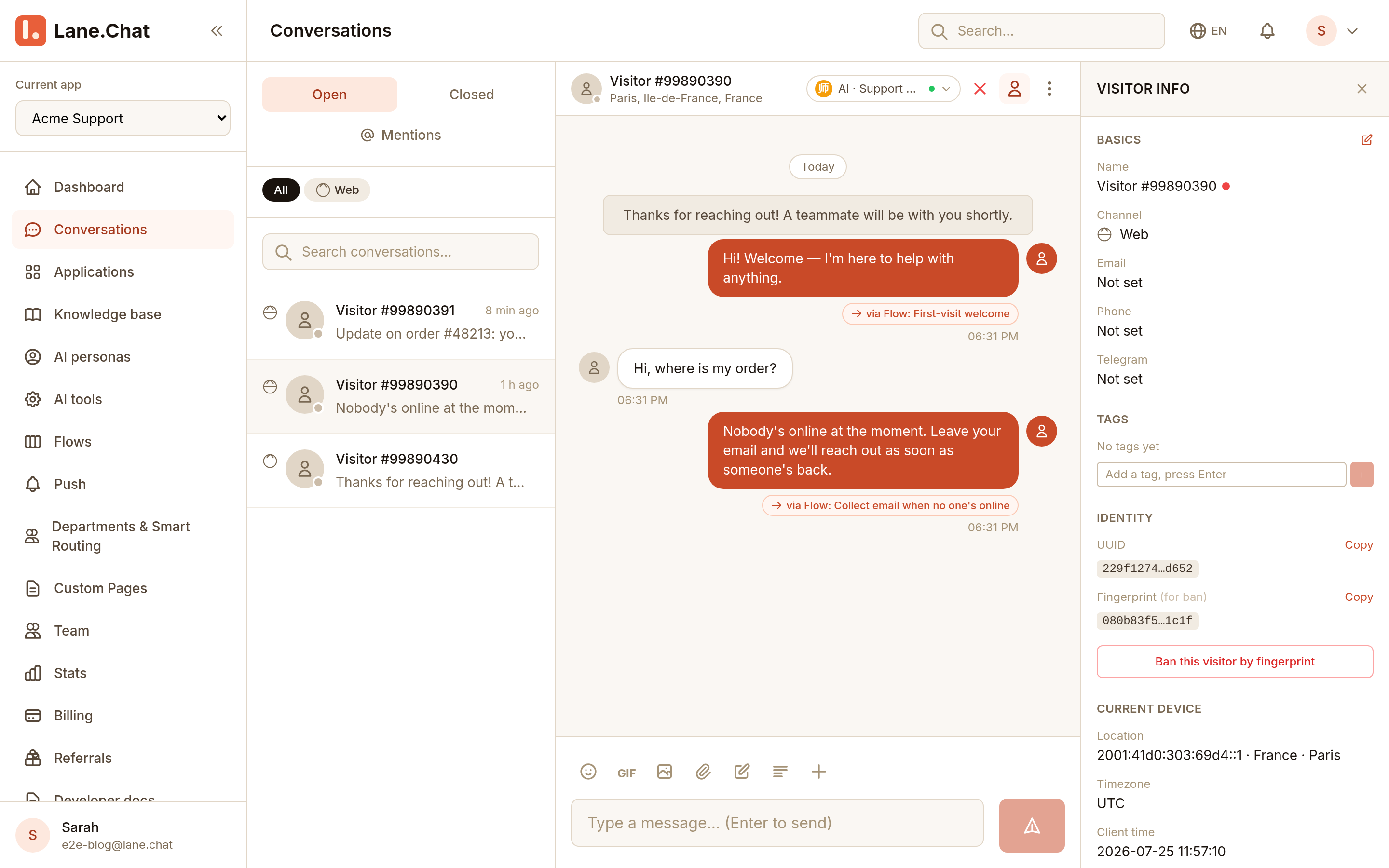
In the group, a new topic appears for the conversation, and the visitor's message lands in it as a bot post. Web visitors show up under their automatic handle ("Visitor #99890391") until they share a name or email.
And when someone replies in the topic, the reply travels back out: the visitor sees it appear in the widget on your site within a couple of seconds.
How teams actually use it
The failure mode of every support tool is the unwatched inbox. The group mirror fixes it by putting the queue inside an app people compulsively check anyway. Patterns we keep seeing:
- Ambient triage. Messages scroll past in the group all day. Nobody "checks support"; someone just notices a hard question and taps into that topic.
- Instant swarming. A tricky refund lands, three people see it at once, and whoever knows the answer types it. No assignment ceremony.
- After-hours coverage without after-hours logins. The one person on call for the evening watches one Telegram group from the couch, not a dashboard tab on a work laptop.
A few practical notes. Keep the group private and staff-only; everything customers write flows through it. Put every teammate who should be able to answer into the Admin IDs field, not just the boss. And if the group gets noisy as you grow, that's the signal to lean back on the dashboard for the queue and keep the group for escalations. Both stay in sync either way, because they're two views of the same conversation.
If nothing shows up
Three checks cover nearly every silent failure:
- Topics are on. The mirror files each conversation into its own topic; a group without topics gives it nowhere to file. Setup step one is first for a reason.
- The bot is an admin. Posting into topics takes admin rights: "in the group" and "admin of the group" are different states.
- The Group ID looks right. Supergroup IDs start with
-100. A short negative number means the group isn't a supergroup yet; recreating it fresh with topics enabled is the fastest fix.
Where this fits
If you're building Telegram out into a full support desk (bot, knowledge base, AI first line, human takeover), the group mirror is one chapter of that story, and we've written the whole book elsewhere: Build a Telegram Support Desk. But it stands alone just fine. Even if your customers never touch Telegram and only ever chat through the website widget, the mirror means your team answers them from the app they'd be staring at anyway.