The Lane.Chat AI doesn't make things up — it answers from your knowledge base. What's in there, it can answer. Spend an afternoon loading your FAQ and half your repeat questions start handling themselves.
Step 1: Open Console → Knowledge Base
In the left nav, go to AI → Knowledge Base. First visit it's empty; top of the page you'll see New category and Import buttons.
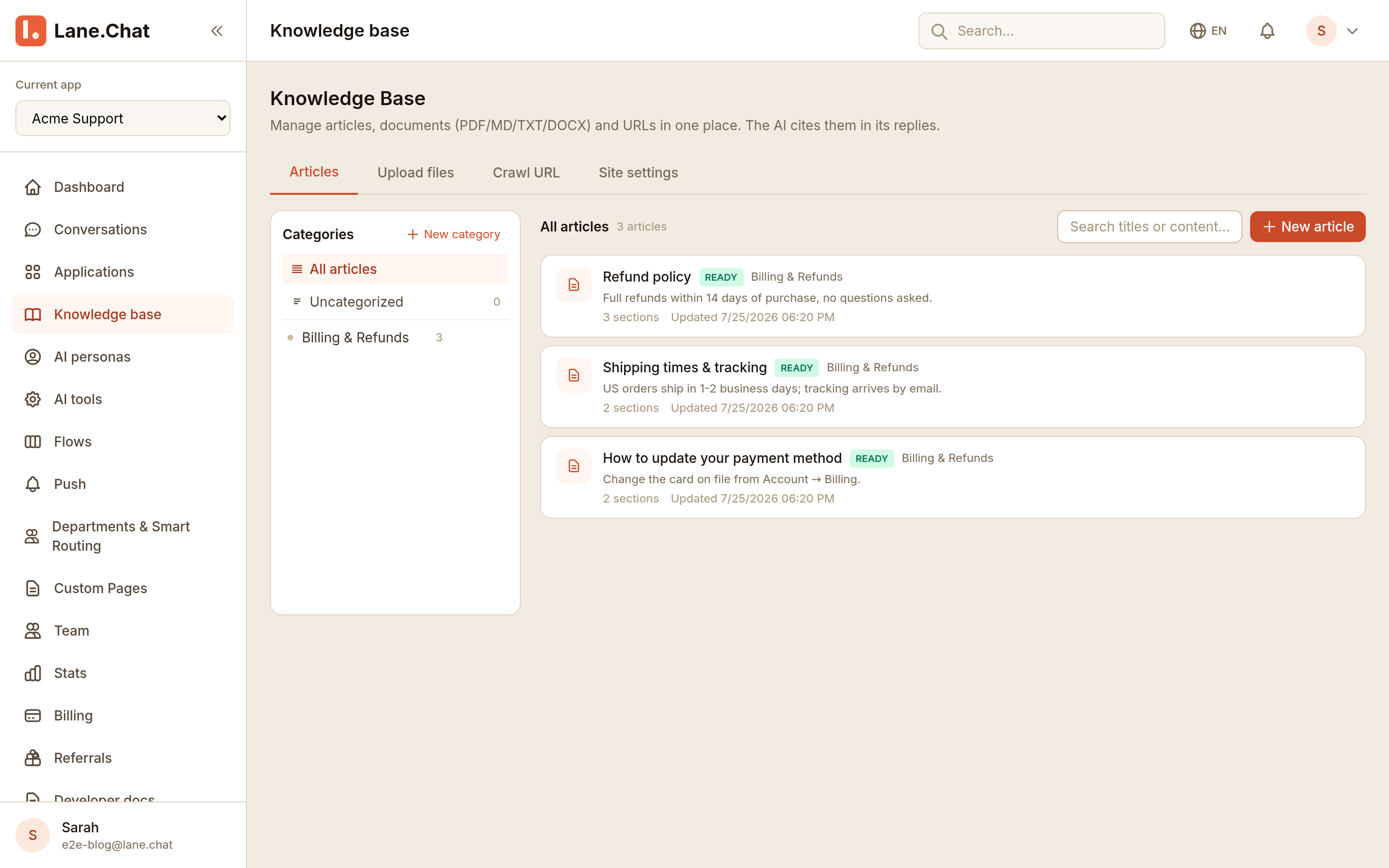
Step 2: Create a few categories
Split by topic: Accounts, Billing, Technical, How-to. Categories are for you and for maintenance — retrieval works across all of them regardless. Keep each category around 20 to 30 entries; split when it grows past that.
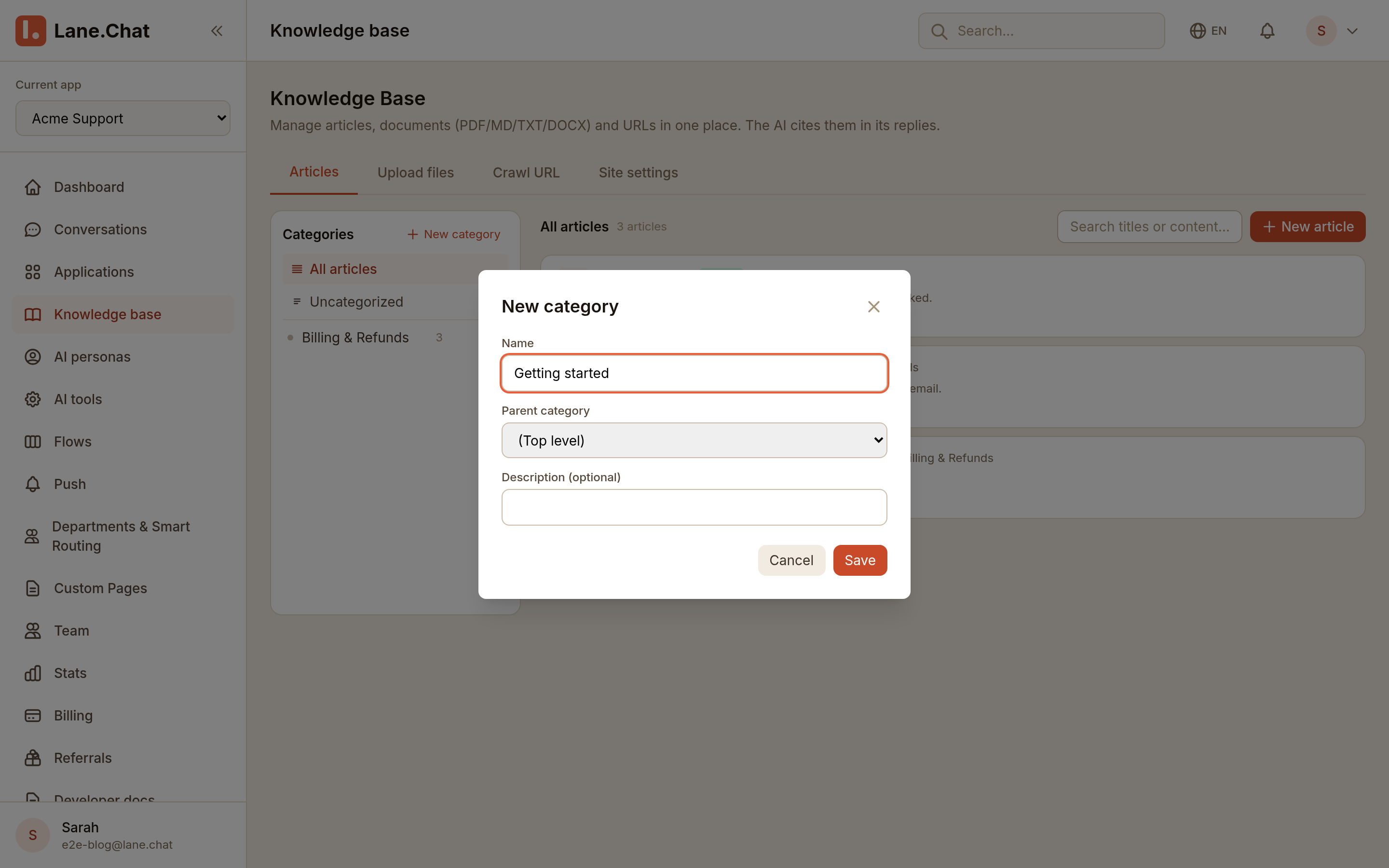
Step 3: Paste FAQs or upload markdown
Inside a category, click New entry. Paste Q/A pairs in this shape:
Q: How do I change my login email?
A: Account → Profile → Change email. We send a verification link to the new address.
Already have markdown docs? Click Upload and drop .md files — we chunk them on headings. Keep individual entries under ~500 words; long ones fragment retrieval.
Step 4: Turn on AI auto-reply
Go to Settings → AI and switch on Enable AI auto-reply. That's the whole setup — there's no separate "answer from knowledge base" toggle to hunt for. With AI on and content in your knowledge base, answers pull from your entries automatically.
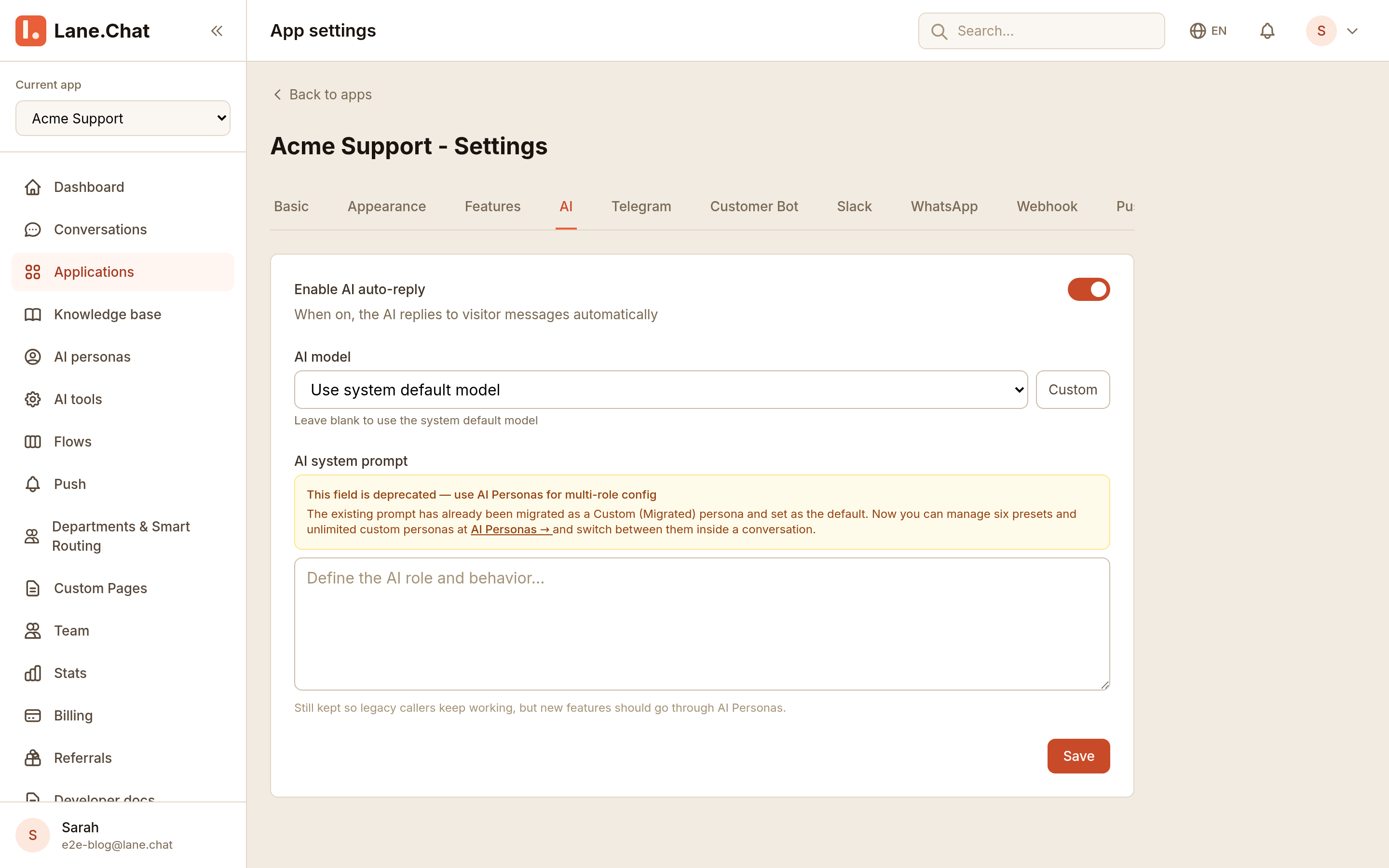
Step 5: Confirm your entries got indexed
Open an entry you just saved. The editor shows its indexing status — you're looking for Indexed, with the chunk breakdown next to it, e.g. Indexed · 3 chunks · 540 tokens. That means the entry is live and retrievable.
The real test happens in conversation: open a page with your widget and ask the questions you just loaded. If the AI grabs the wrong entry, tighten that entry's wording or split it in two.
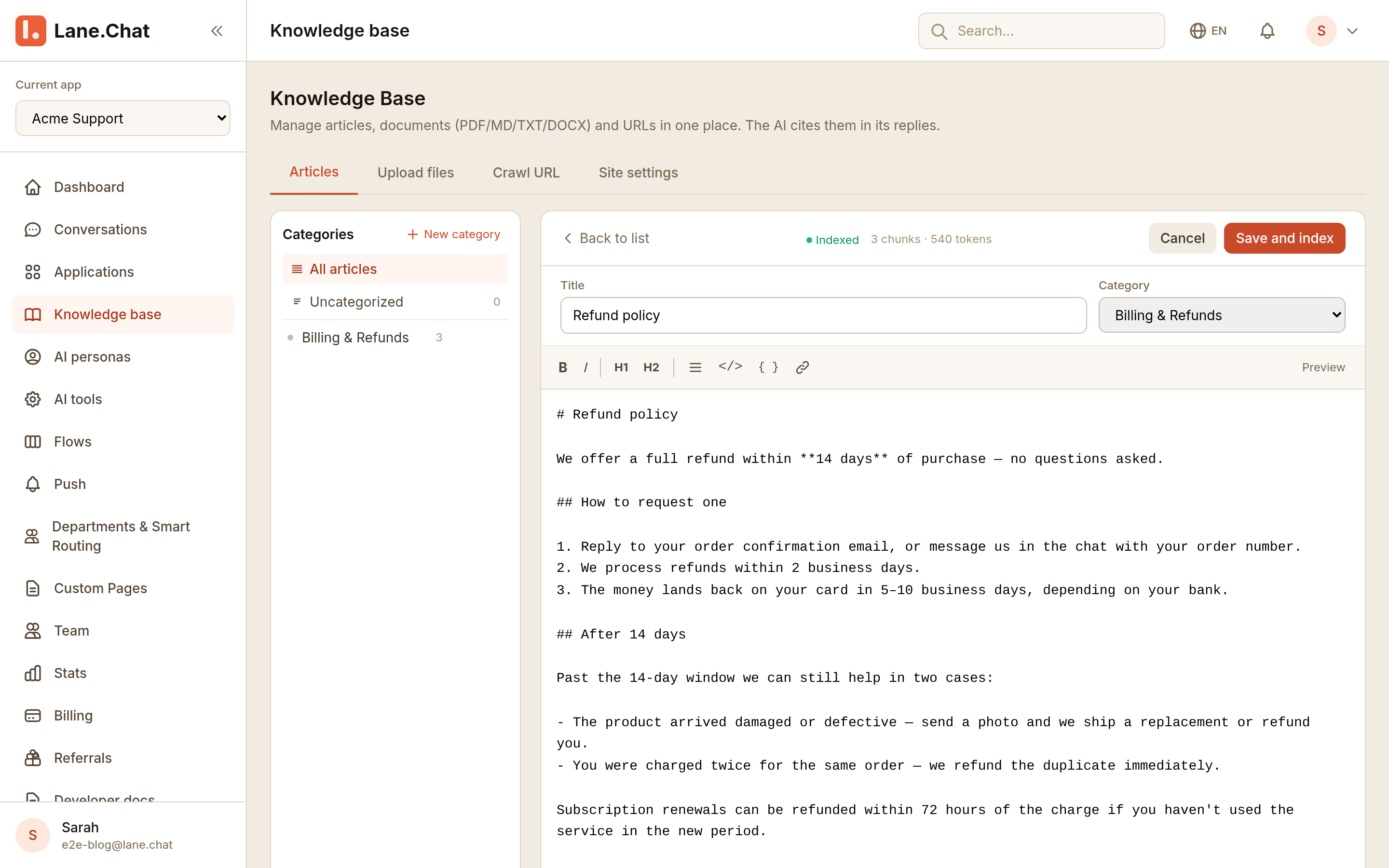
Step 6: Review the "misses" report
After a few days, open AI → Analytics → Unanswered. This is every question where the AI gave up or scored too low. Pick the frequent ones and write KB entries for them. Run this loop once a week — accuracy climbs noticeably in two weeks.
截图清单 / Screenshots Checklist
01-kb-home.png— Empty KB home with the two action buttons02-new-category.png— New category modal with name field04-ai-kb-toggle.png— Enable AI auto-reply switch in AI settings05-preview-citations.png— Entry editor showing the Indexed status with chunk and token counts