A lot of teams run their whole day inside Slack, so asking them to pop over to a support console to reply to customers adds friction. The Lane.Chat Slack integration fixes that: new conversations land in a Slack channel, your team replies in the thread, the customer gets the reply.
Step 1: Search Lane.Chat in the Slack App Directory
In Slack, click your workspace name top-left → Tools & Settings → Manage apps. That opens the Slack App Directory.
Search Lane.Chat. Click the result.
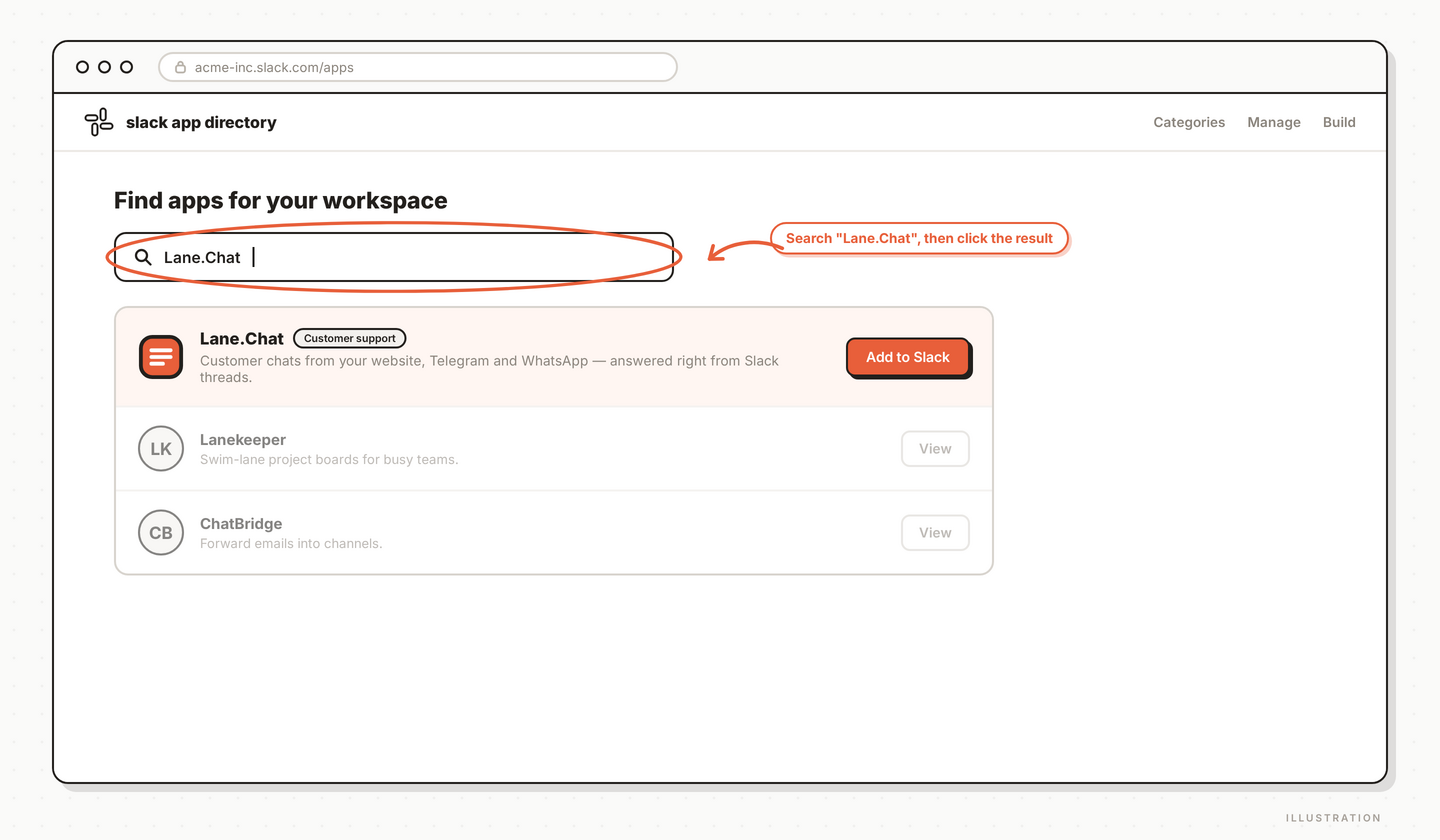
Top-right, click Add to Slack.
Step 2: OAuth grant
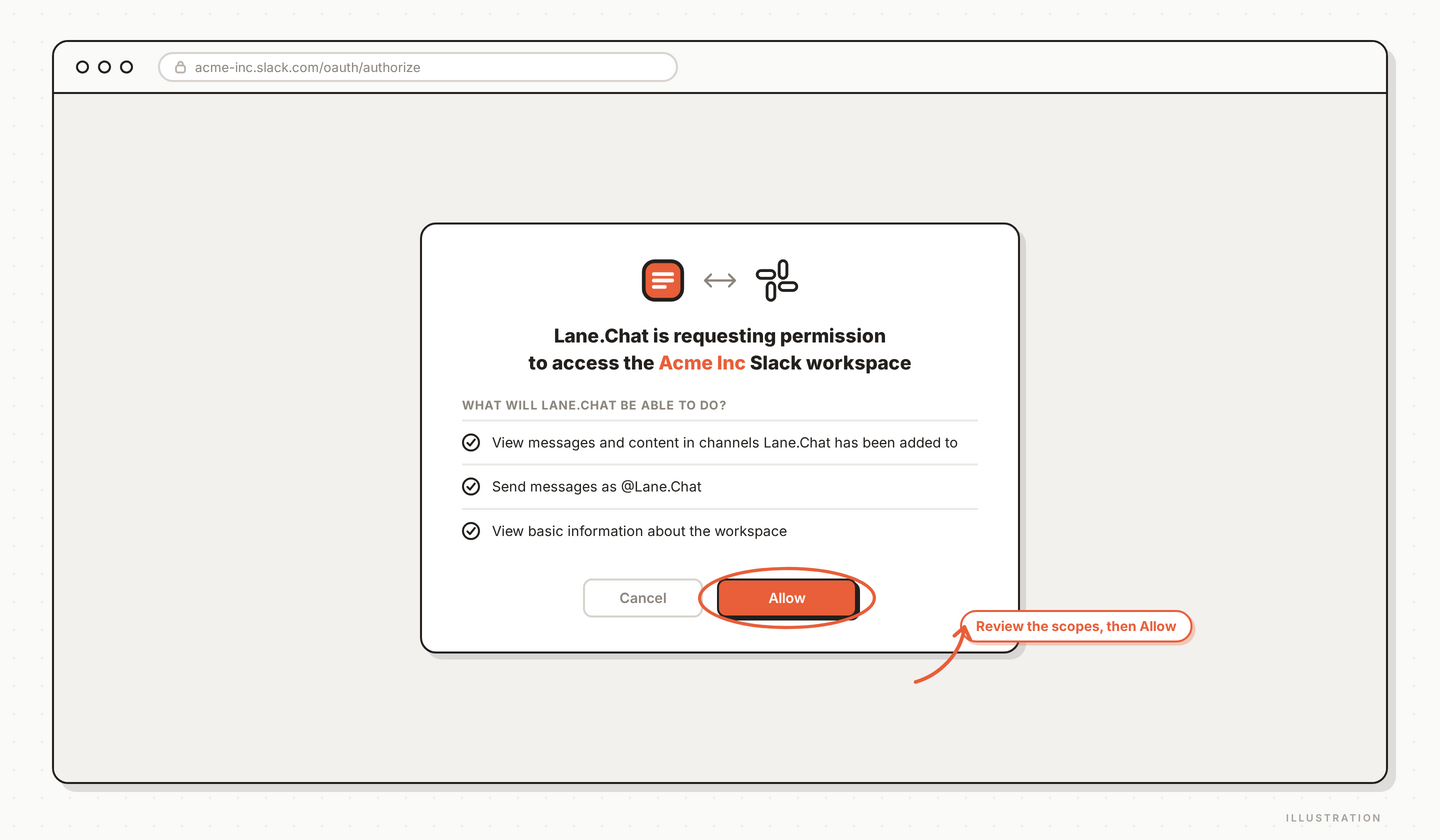
Slack shows the permission screen. Lane.Chat asks for:
- Read channel list
- Post messages to specified channels
- Read replies in those channels (to detect agent responses and forward to customers)
- Read basic workspace info
Review, click Allow.
After approval, you're redirected back to the Lane.Chat console.
Step 3: Pick a workspace and default channel
Back in the console, you'll see a setup form:
- Workspace — the one you just authorized (usually just one)
- Default channel — where new conversation messages post. We recommend a dedicated channel like
#customer-supportor#lane-chat-inbox - Tag-based routing (optional) — e.g. conversations tagged
billinggo to#billing-team,techto#dev-support
Start with just the default channel. Add tag routing later once you see patterns.
Step 4: Bind to an app in the console
The Slack integration is per Lane.Chat app — one app, one set of Slack routing rules.
Console Channels → Slack:
- Pick which app to bind (e.g.
acme-shop) - Select Slack workspace and default channel
- Save
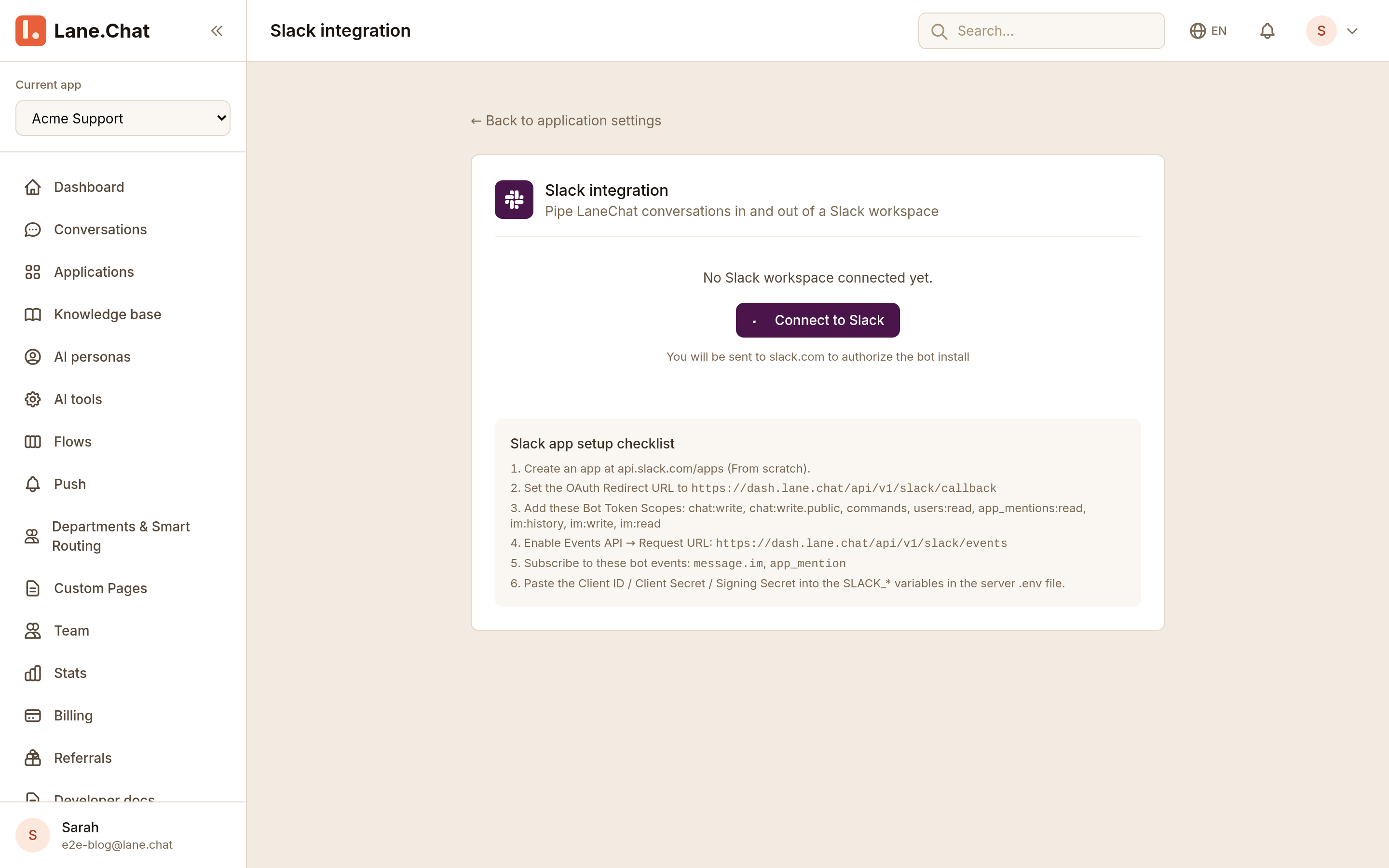
If you run multiple apps (one brand, one internal support), each can bind to a different Slack channel. No cross-traffic.
Step 5: Turn on conversation notifications
Back in Slack channel settings, enable under Notifications:
- New conversation started (recommended on)
- User sends a new message (recommended on)
- User timeout (optional)
- AI-to-human escalation (recommended on — the important one)
- Conversation closed (optional, team preference)
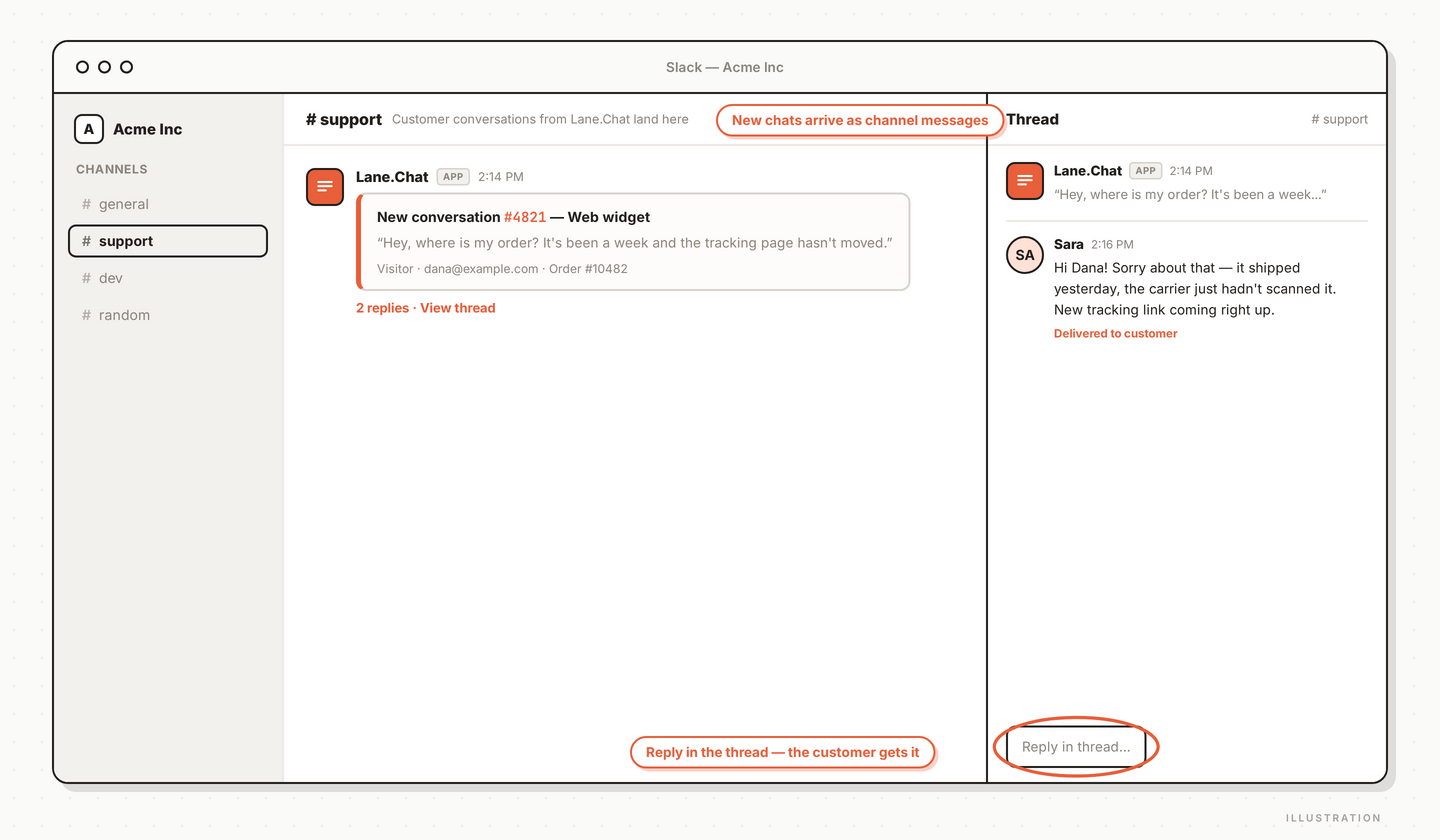
At minimum turn on the first three plus escalation. Each new-conversation post in Slack includes: visitor name/ID, their first message, source channel (web / TG / WA), and a prompt "reply in thread to answer ↓."
Step 6: Reply directly in Slack
This is the core experience.
When a new conversation shows up in the Slack channel, reply to it in the thread. Whatever you type gets delivered to the customer as your agent reply.
No slash commands, no bot mentions. The Lane.Chat bot watches thread replies to pushed conversations and forwards them automatically.
Supported:
- Text
- Images and files (Slack uploads are forwarded to the customer channel — photo/document on TG, media on WA)
- Emoji reactions (on channels that support reaction echo)
Step 7: End-to-end test
- Send a test message from your Web Widget or Telegram bot
- Confirm the Slack channel receives the push
- Reply in the thread
- Check the original channel (widget / TG) — your reply should appear there
One complete loop and you're done.
Tips
Keep the channel archive-friendly: don't mix customer pushes into a general workspace channel. Dedicate one. Otherwise it gets buried under discussion in a week and the messages that matter disappear.
Keep the thread: the same customer's follow-up messages all land in the same thread. Don't reply as a new channel message — always reply in-thread, or Lane.Chat can't keep the conversation stitched.
Screenshots Checklist
01-slack-app-directory.png— Slack App Directory search field showing Lane.Chat result02-slack-oauth-allow.png— Slack OAuth grant screen with permission list and Allow button03-console-slack-bind-app.png— Console Slack binding page with app selector04-slack-thread-reply.png— Slack channel with a thread reply being delivered to the customer