You don't need 24/7 support. You do need visitors to know when you'll actually answer. A three-line offline message plus a business-hours schedule is the difference between "I'll wait" and "I'll try a competitor." Five steps.
Step 1: Open the After-hours auto-reply flow
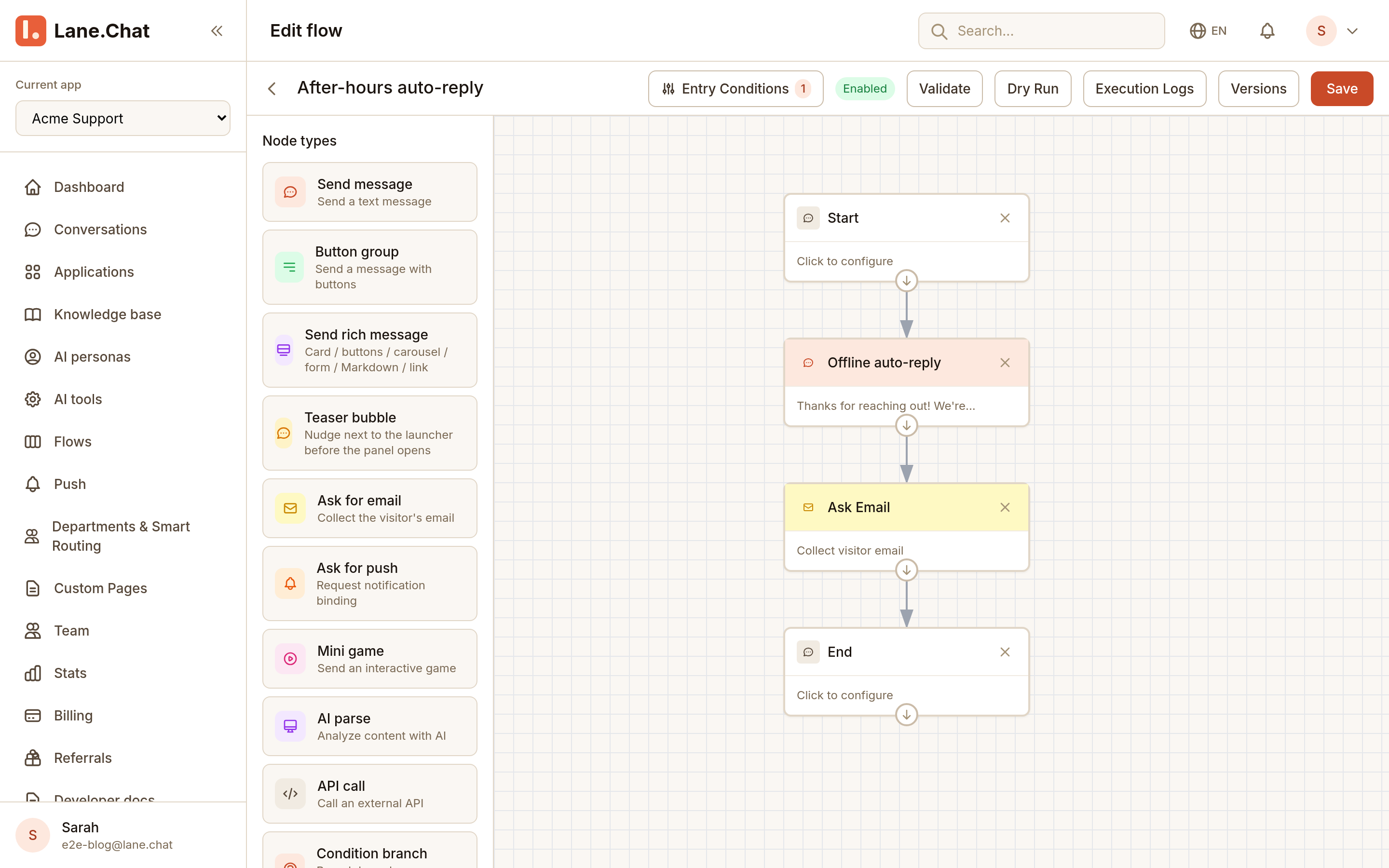
Office hours in Lane.Chat live on a flow, not a settings page. Console → Flows — there's a prebuilt one called After-hours auto-reply, built on the Off-hours trigger: it fires when a visitor messages outside the hours you set. Open it in the editor.
Step 2: Set your time window and timezone
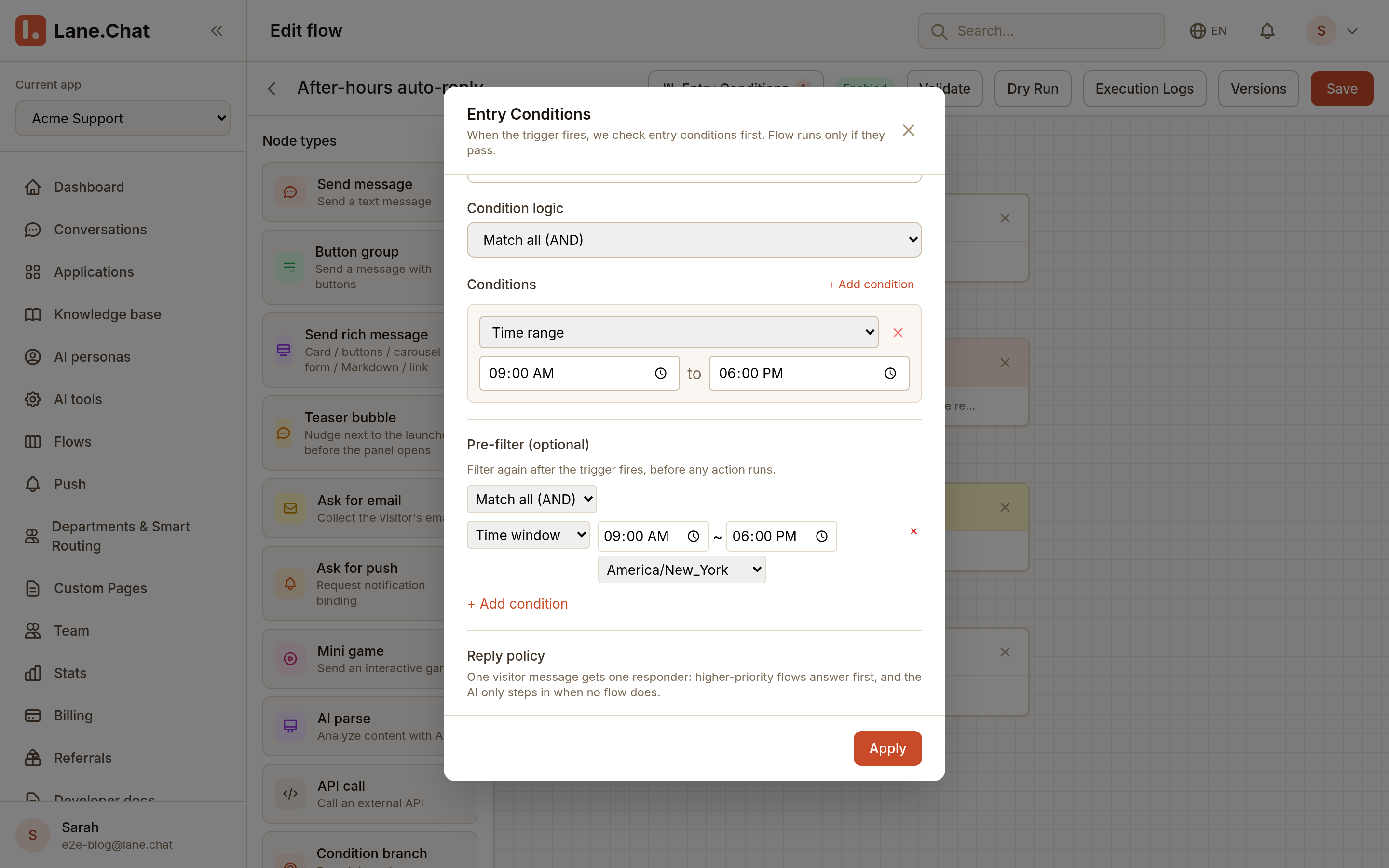
In the flow editor, open the Entry Conditions panel. Two things to get right:
- Time window: your working hours as one range, say
09:00 AM – 06:00 PM. Anything outside it counts as after hours and the flow replies. Night shift? Ranges that cross midnight (10:00 PM – 06:00 AM) work too — there's a checkbox for it. - Timezone: a US East team picks
America/New_York. Pacific team,America/Los_Angeles. Getting this wrong silently shifts your whole schedule, so get it right here.
That's the model — one time range plus a timezone, not a per-day grid. Which is fine for the job this does: catching the 3 a.m. visitor before they wander off to a competitor.
Step 3: Write the offline message
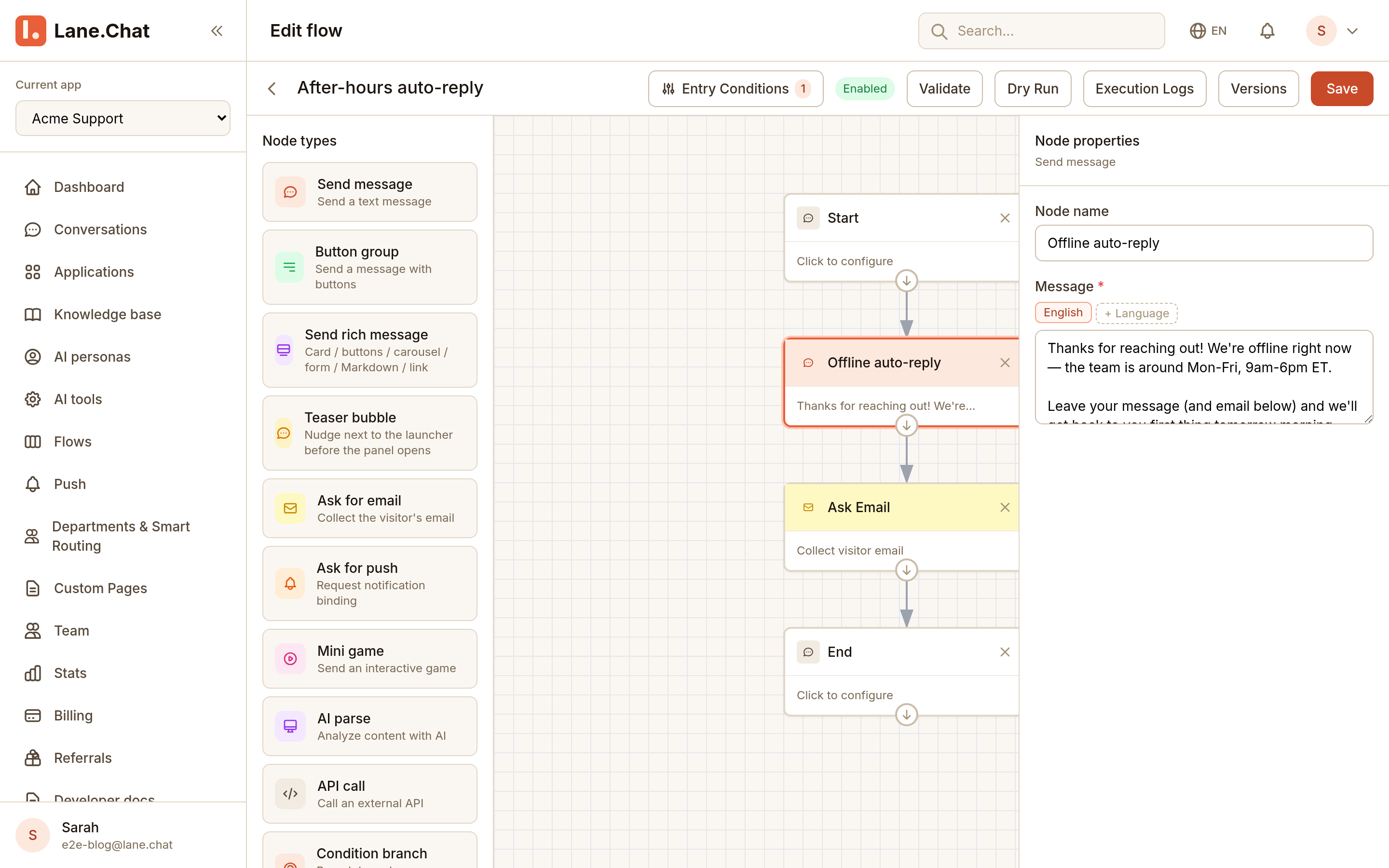
The reply itself is a node in the same flow. Click the Offline auto-reply node and edit the text. Three lines is plenty:
- You're offline right now.
- When you're back — a concrete time ("back at 9 a.m. ET") beats "as soon as possible."
- What happens next: your typical response time, or an email ask so you can follow up.
The prebuilt flow pairs the message with an email-capture step. Keep it — a visitor who leaves an address at 3 a.m. is a lead, not a missed chat.
Step 4: Add language variants
If you support multiple languages, write each template in every language you handle. Lane.Chat picks by visitor locale automatically — English browsers get English, Japanese browsers get Japanese, fallback if no match.
Step 5: Test it
Two ways:
- Shift the window: temporarily edit the time range so right now falls outside it — end it a minute ago, say. Send a test message from the widget, confirm the offline reply lands, then put the real hours back. Easy to forget that last part and stay "closed" for real.
- Message after hours: wait until after your real closing time, ping from a test account, and read the reply like a stranger would — does the "back at" line still hold up?
One common gotcha: DST transitions. The week clocks change, do a quick sanity check — the wrong timezone here means every visitor sees wrong hours for months before you notice.
截图清单 / Screenshots Checklist
01-office-hours-entry.png— Flow list with the After-hours auto-reply flow02-weekly-schedule.png— Entry Conditions panel with the time window and timezone03-offline-template.png— Offline auto-reply node with the message text